
看累了听个音乐吧
-p 标志) 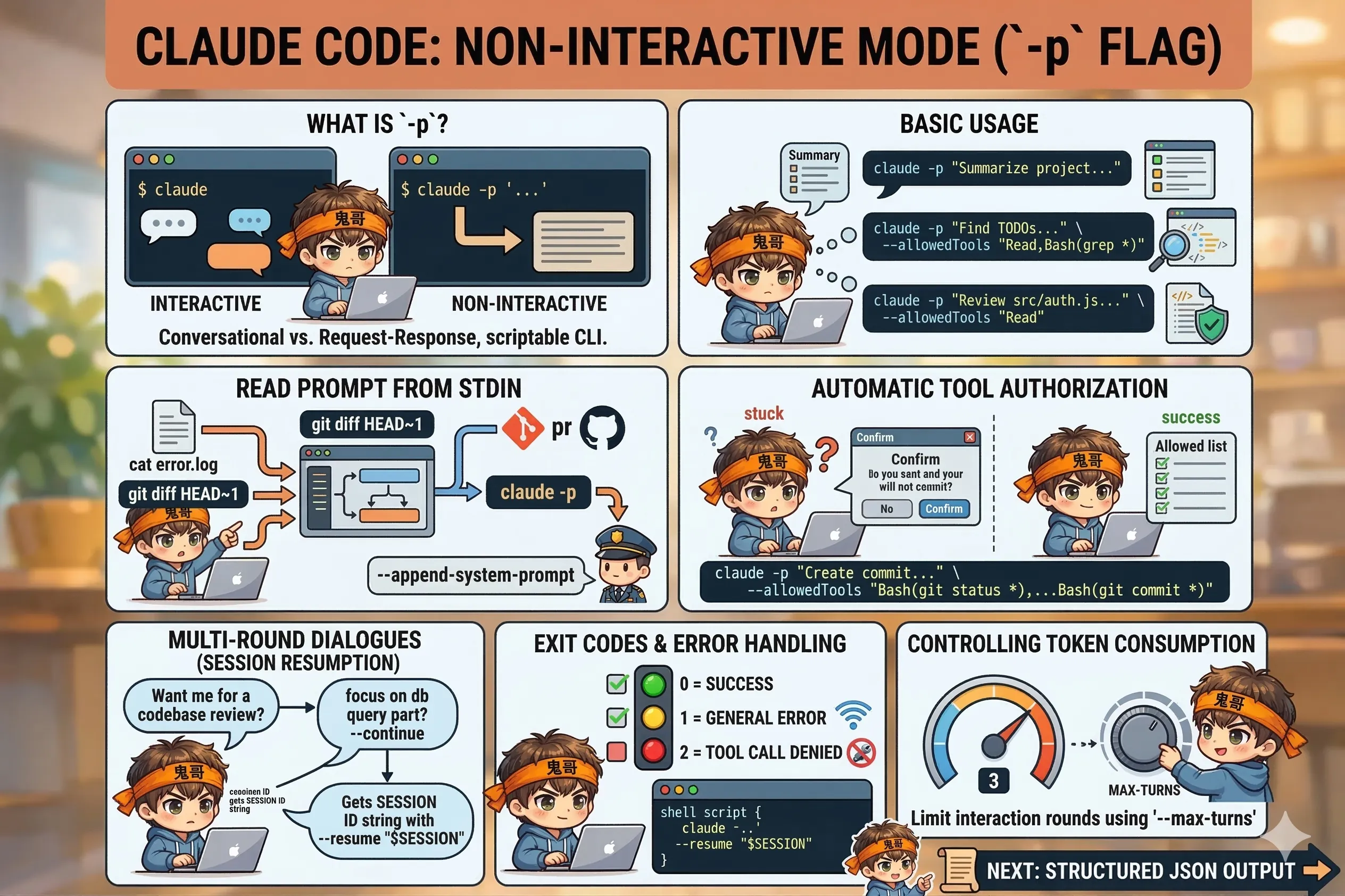
一个标志,让 Claude Code 变成可脚本化的命令行工具。
-p? 正常用 Claude Code,你需要打开一个交互式会话,来回对话。但加上 -p(--print)标志,Claude Code 就变成了一个"一问一答"的命令行工具——问完就退出,结果打印到 stdout。
# 交互模式:打开会话,等待输入
claude

# 非交互模式:直接给 prompt,拿结果,退出
claude -p "What does the auth module do?"
这个模式以前叫 headless mode,现在官方叫它 Agent SDK CLI。不管叫什么,-p 是核心。
# 最简单的形式:问一个问题
claude -p "Summarize this project in 3 bullet points"

# 限制可用工具(避免 Claude 乱改文件)
claude -p "Find all TODO comments in the codebase" \
  --allowedTools "Read,Bash(grep *)"

# 只读分析,不允许任何写操作
claude -p "Review src/auth.js for security issues" \
--allowedTools "Read"-p 可以从 stdin 读 prompt,这让它可以和其他命令组合使用:
# 把文件内容通过 stdin 传给 Claude
cat error.log | claude -p "Analyze this error log and suggest fixes"

# 把 git diff 传给 Claude 做 code review
git diff HEAD~1 | claude -p "Review these changes for potential issues"

# 结合 grep 筛选后传入
grep -r "TODO" src/ | claude -p "Prioritize these TODOs by importance"
还可以结合 --append-system-prompt 加角色设定:
# 让 Claude 以安全工程师身份审查 PR
gh pr diff 42 | claude -p \
  --append-system-prompt "You are a security engineer. Focus on vulnerabilities." \
--allowedTools "Read"非交互模式下,Claude 遇到需要权限的操作会……卡住等确认,而你的脚本根本没法输入。所以要用 --allowedTools 预先授权:
# 允许读文件和执行 Bash
claude -p "Run the test suite and report failures" \
  --allowedTools "Read,Bash"

# 细粒度控制:只允许特定 git 命令
claude -p "Create a commit for my staged changes" \
  --allowedTools "Bash(git status *),Bash(git diff *),Bash(git commit *)"
--allowedTools 的值和 settings.json 里 permissions.allow 的语法一样——支持 工具名(前缀 *) 格式的前缀匹配。
非交互模式也支持多轮对话,通过 --continue 或 --resume 续接上次的会话:
# 第一轮
claude -p "Review this codebase for performance issues"

# 续接最近一次对话
claude -p "Now focus on the database query part" --continue

# 续接指定 session ID(适合并发场景)
SESSION=$(claude -p "Start the review" --output-format json | jq -r '.session_id')
claude -p "Give me a summary" --resume "$SESSION"
--continue 用的是最近一次会话,--resume 用的是你指定的 session ID——当你同时跑多个 claude 进程时,--resume 更安全。
脚本里用 claude,要关注退出码:
| 退出码 | 含义 |
|---|---|
0 | 成功 |
1 | 一般错误(网络、认证等) |
2 | 工具调用被拒绝 |
在 shell 脚本里:
#!/bin/bash
set -e  # 遇到错误就退出

RESULT=$(claude -p "Check if there are any syntax errors in src/" \
  --allowedTools "Read,Bash(node --check *)" \
  --output-format json)

if [ $? -ne 0 ]; then
  echo "Claude failed to run" >&2
  exit 1
fi

echo "$RESULT" | jq -r '.result'非交互模式下,Claude 可能会"超发"——绕好几个弯子才给你答案。用 --max-turns 限制轮次:
# 最多跑 3 轮工具调用就给出结论
claude -p "Review src/app.js for bugs" \
  --max-turns 3 \
  --allowedTools "Read"
轮次到了之后,Claude 会给出截至目前的结论,不会突然中断。
#!/bin/bash
# batch-review.sh — 逐个分析 src/ 下的 JS 文件

REPORT_FILE="review-report.md"
echo "# Code Review Report" > "$REPORT_FILE"
echo "Generated: $(date)" >> "$REPORT_FILE"

for file in src/**/*.js; do
  echo "Reviewing $file..."

  RESULT=$(claude -p "Review $file for bugs, security issues, and code quality. Be concise." \
    --allowedTools "Read" \
    --output-format json \
    --max-turns 2)

  echo "" >> "$REPORT_FILE"
  echo "## $file" >> "$REPORT_FILE"
  echo "$RESULT" | jq -r '.result' >> "$REPORT_FILE"
done

echo "Done. Report saved to $REPORT_FILE"
下一节,我们深入看结构化 JSON 输出——让 Claude 的回答变成机器可读的格式 ↓